
CDPS Overview
On this page
4.1 CDPS Overview
Organize project files before designing and understand how the card, its objects, and object properties relate. Prepare the original logo, card specifications, and a writable project directory. A database can be created in 4.5; reports and interfaces are not prerequisites for the first design.
4.1.1 Main Window and Toolbars
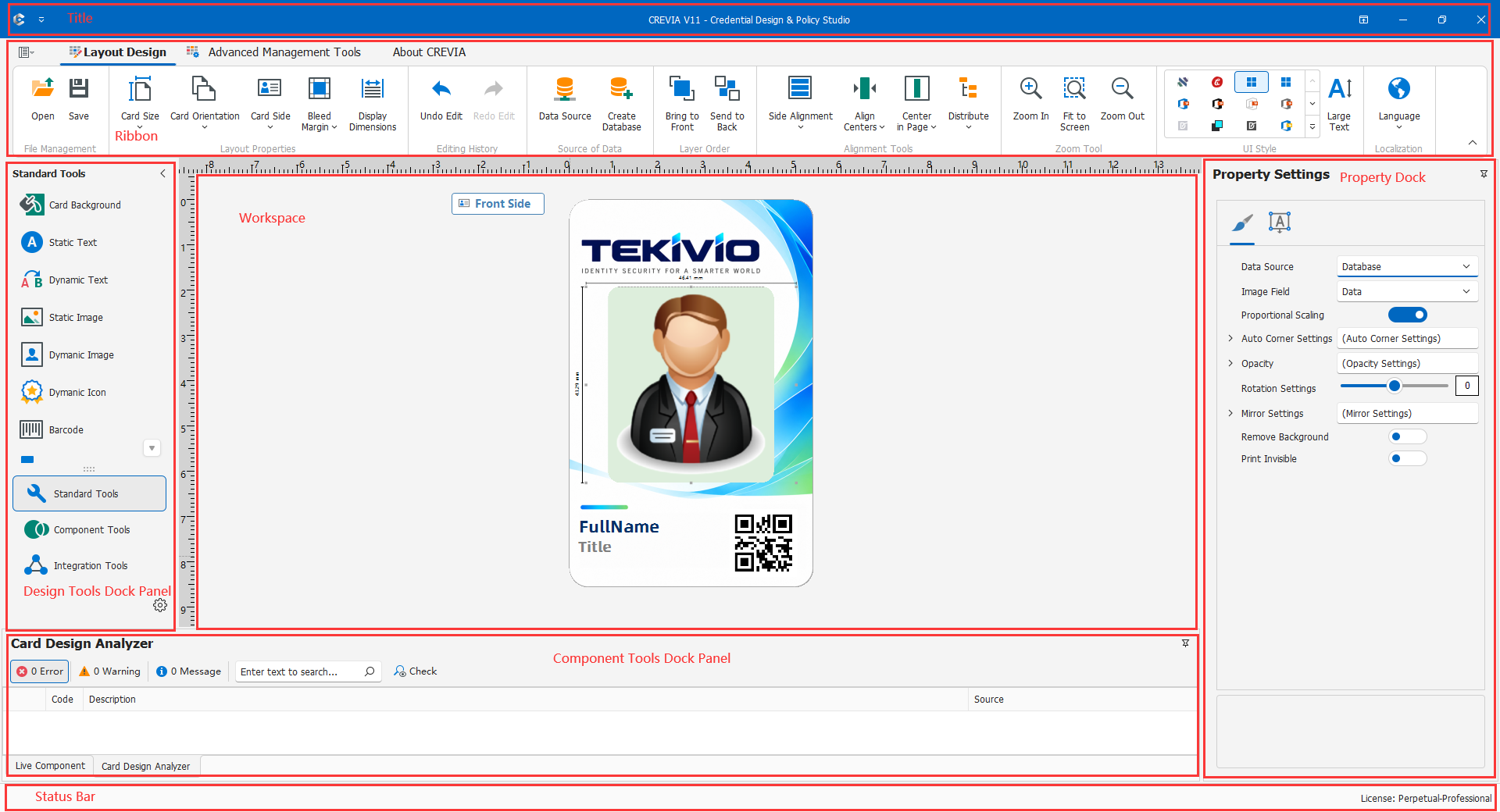
The canvas is central: ribbon commands act on the project or layout, tools create objects, and properties change the selection. Follow create or select, set properties, inspect the result. Layout-wide size and orientation are different from an individual object's font or position.
Workspace Areas
- Ribbon: layout size, card side, data connections and queries, and saving.
- Standard tools: text, images, codes, and shapes. Decide whether the content is fixed or record-dependent before choosing an object.
- Canvas: the side currently being edited. Objects on the other side have not disappeared.
- Properties: parameters for the selected type. Use multi-selection for common appearance settings, and verify business bindings individually.
- Components and interfaces: drop-downs, reports, and integrations. These may affect COC without adding visible card artwork.
- Messages: results and errors. A visual change on the canvas does not prove a connection or save succeeded.
First-Session Checks
- Confirm the project, file version, and current side.
- Use Fit to view the whole card and its existing contents.
- Create a title in a new project, or select the intended existing object; confirm that properties follow the selection.
- Change the content and position, deselect, and inspect. Use Undo if needed and verify the restored state.
Text selection should show text properties; photo selection should show image properties. If not, check the selection, side, and overlapping objects. An unavailable command may indicate licensing, role permissions, or missing prerequisites such as a data source.
4.1.2 Creating, Opening, and Saving Layouts
Create a Layout
- Save existing unfinished work, then start a blank design or use the design wizard.
- Set size, orientation, and sides as described in 4.2. The example is landscape; actual dimensions follow stock and output requirements.
- Add the fixed title "Staff Card" and reserve regions for photo, name, and number.
- Without synchronization, save to the project folder, for example
StaffCard_v01.skdCard. - Configure data and dynamic objects, design the back, and save again. Retain separate initial, bound, and release-candidate versions when appropriate.
Open an Existing Layout
After opening .skdCard, verify physical size, orientation, front, back, and data source. A correct fixed title does not prove that database and photo paths are valid on this computer. Do not deliver before checking them.
Before editing a published file, retain the original using file management. Names such as StaffCard_v01.skdCard and StaffCard_v02.skdCard help distinguish versions; record the changes. Restoring appearance alone does not restore data accessibility.
Reopen After Saving
Reopen the exact saved path and check dimensions, both sides, positions, bindings, components, reports, and permissions. This validates persistence; the target COC still needs data and device acceptance checks.
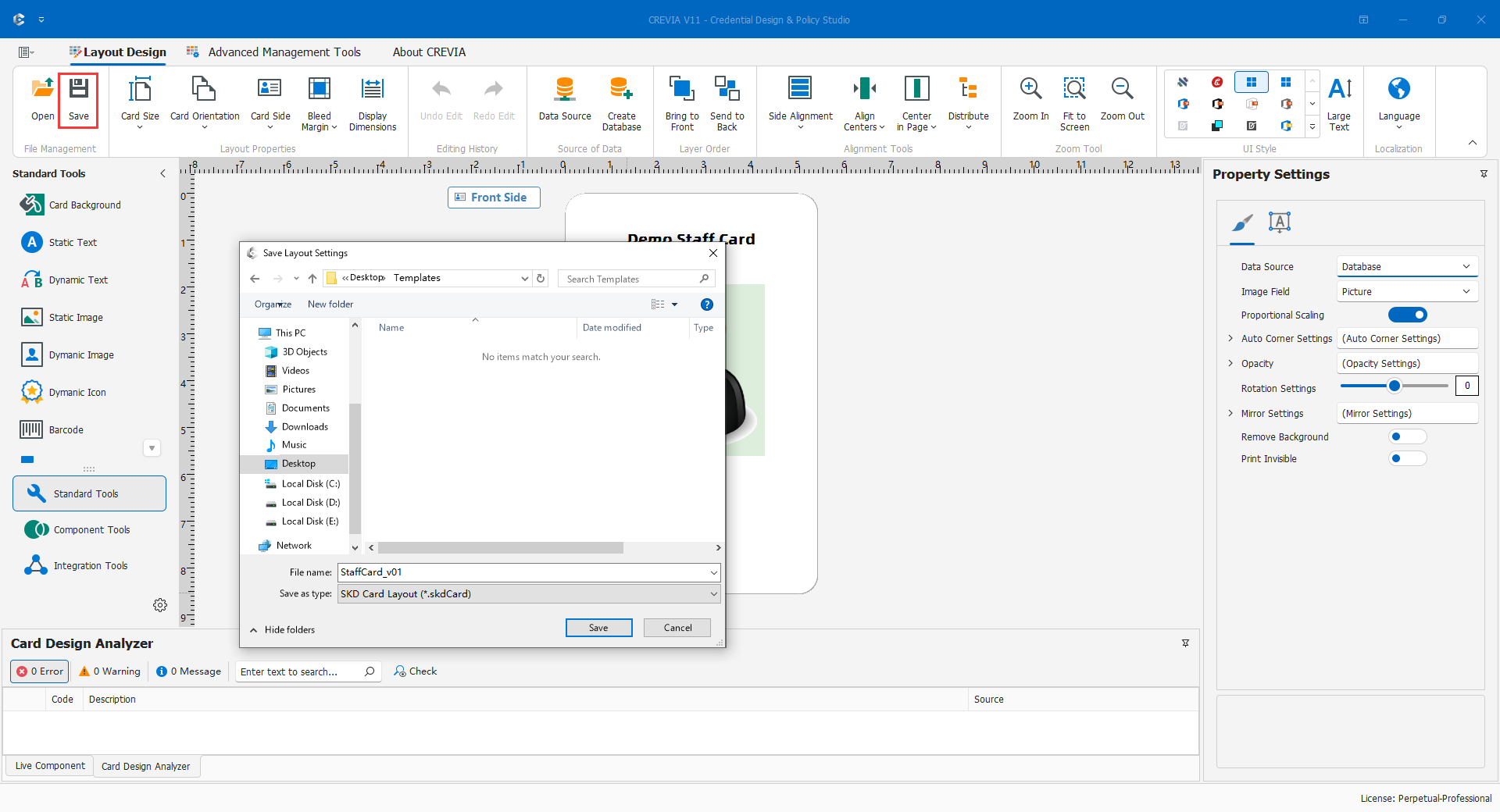
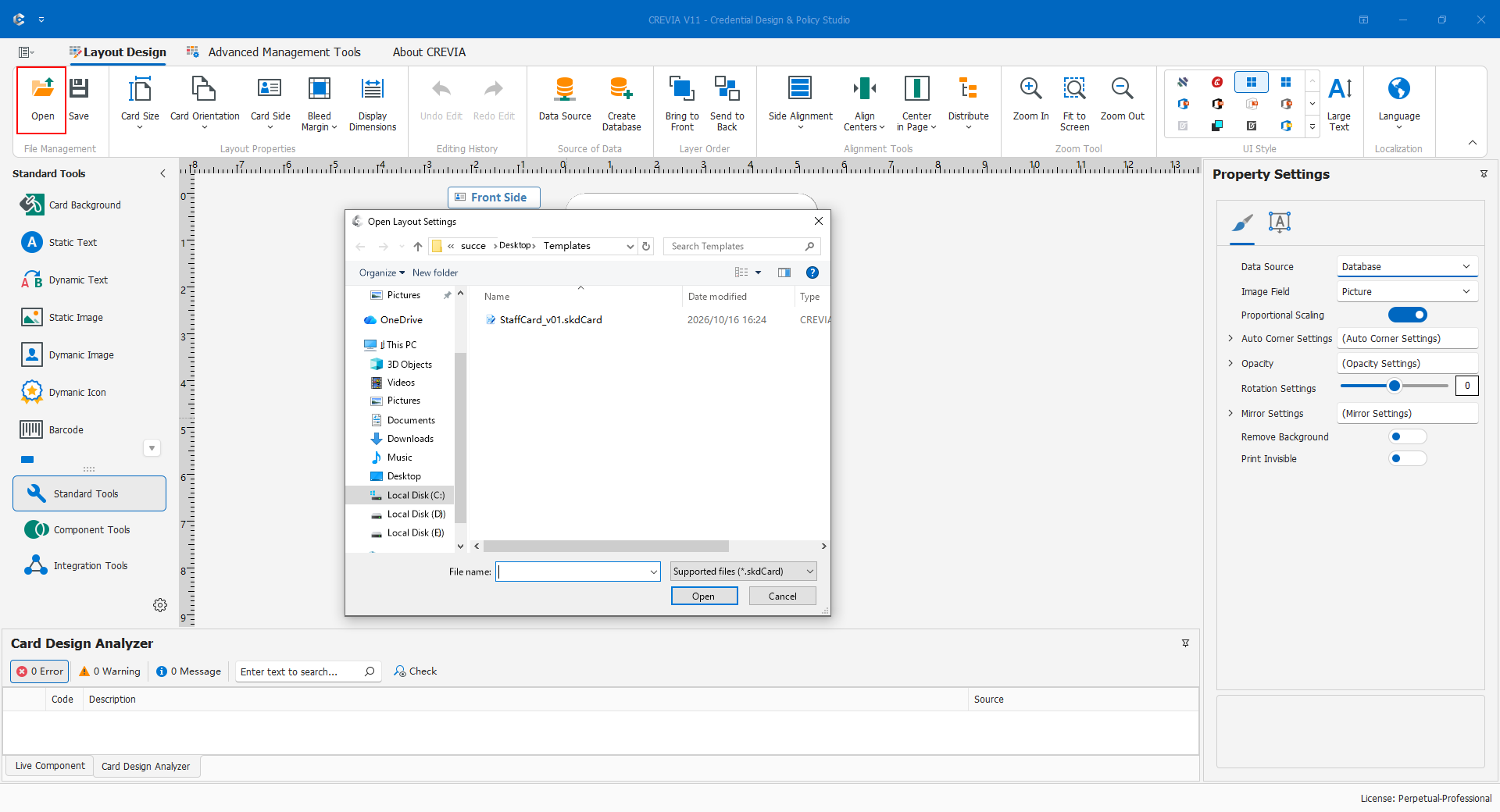
Note: This exercise assumes file saving without synchronization. Save is neither a personnel-database backup nor automatic client distribution. With synchronization enabled, Save publishes to the database instead; see 4.9. Keep a rollback copy before overwriting a production file.
4.1.3 Layouts, Resources, and Output Files
A design project normally contains more than one file:
.skdCard: the credential design and associated settings loaded by COC. Save changes before clients can use them.- Personnel database: records, cards, and possibly photos. SQLite and Access are normally separate files; server databases remain on their servers. Saving a layout does not copy them into it.
- Photo files and original artwork: folder-based photos rely on files and naming rules. Retain clear logo originals and identify embedded versus external dependencies before delivery.
.repx: report pages and field definitions, separate from the credential canvas; see 4.7..clcf: synchronization connection configuration, not an ordinary editable card design. Restrict distribution; see 4.9.
Suggested Project Folders
For example, use StaffCardDemo/Layouts, Database, Photos when needed, Resources, and Reports. This is an organizational example, not a mandatory structure. Keep automatically generated database filenames unless the connection is deliberately updated; renaming a file merely for consistency can break it.
You should finish with a clearly located, reopenable layout and an understanding of which database and resources must accompany it. Continue to 4.2 or the relevant maintenance topic.