
Common Interface and Basic Operations
On this page
- 3.1 Main Window Areas
- 3.2 Switching Between Nine Interface Languages
- 3.3 Themes, Large Text, and Display
- Themes
- Large Text
- 3.4 Common Message Dialogs
- 3.5 Selecting Files, Saving, and Default Folders
- Opening and Saving Layouts
- Default Folders
- File Safety
- 3.6 Updating the Software
- 3.7 Feedback and Technical Support
- Chapter Check
This chapter describes the shared CDPS/COC interface, language and display settings, file operations, common messages, updates, and feedback. Layout design, data maintenance, and printing are covered in their own chapters.
3.1 Main Window Areas
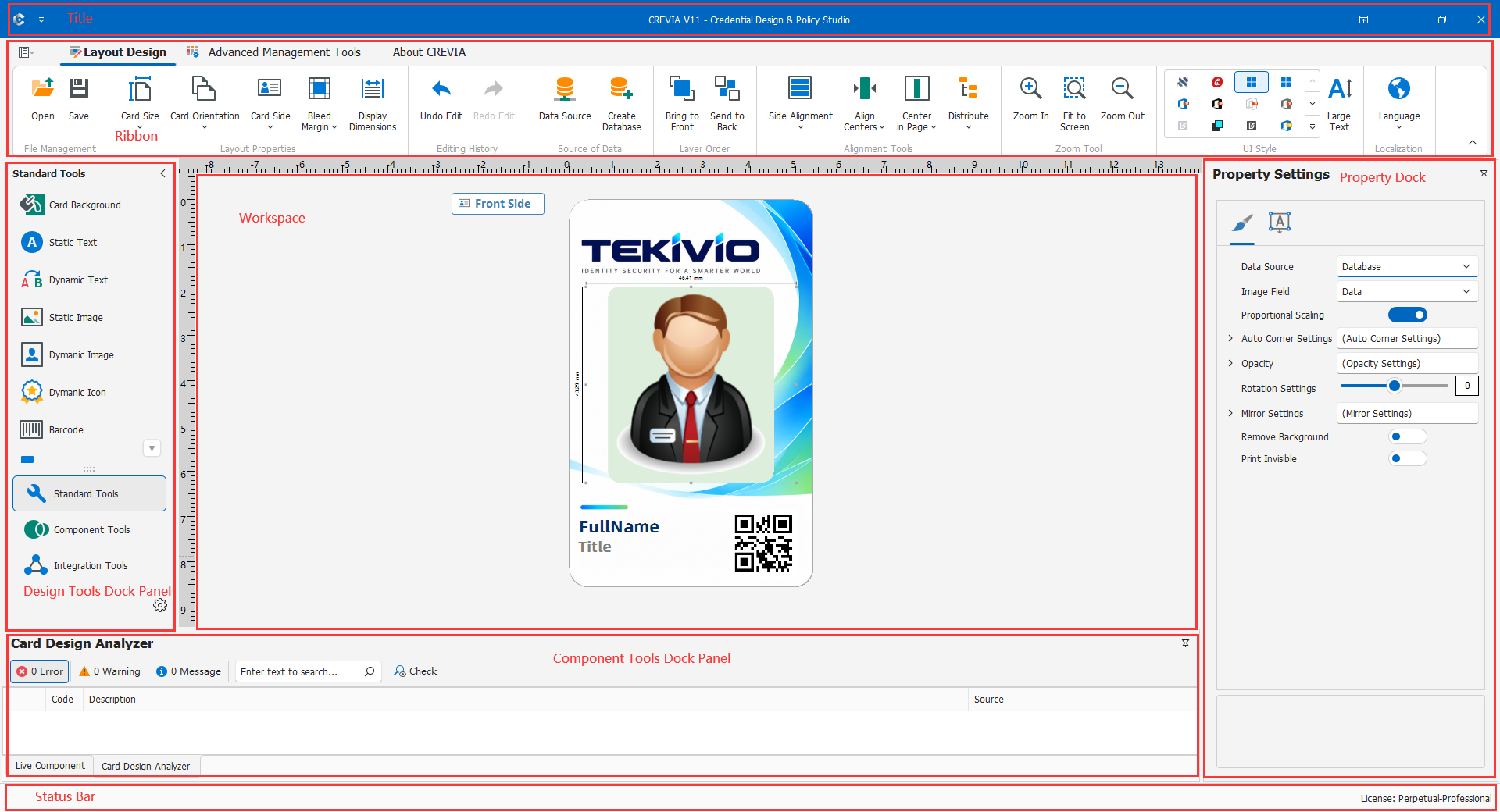
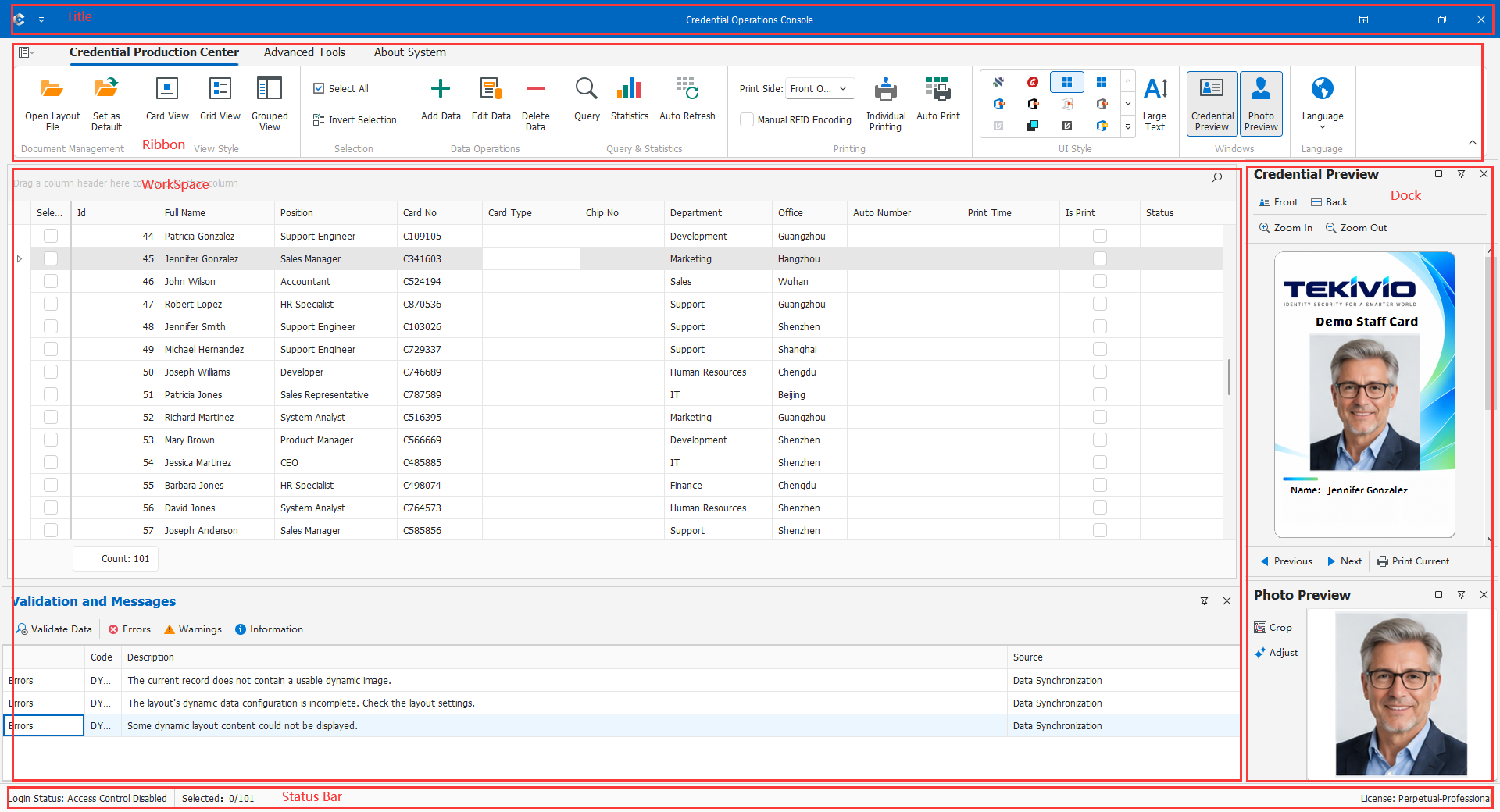
Both applications use a ribbon interface. Their business commands differ, but the main areas have similar purposes:
- Title bar and window controls: identify the application or layout and provide minimize, maximize, and close commands.
- Ribbon: groups commands by task. CDPS provides layout, data source, object, and component tools; COC provides data, queries, production, printing, and reports.
- Workspace: the design canvas in CDPS, or records, credential preview, and photo preview in COC.
- Dock panels: show properties, tools, messages, photos, or previews as required by the current task.
- Status bar: displays information such as the current user, license, or operation status.
3.2 Switching Between Nine Interface Languages
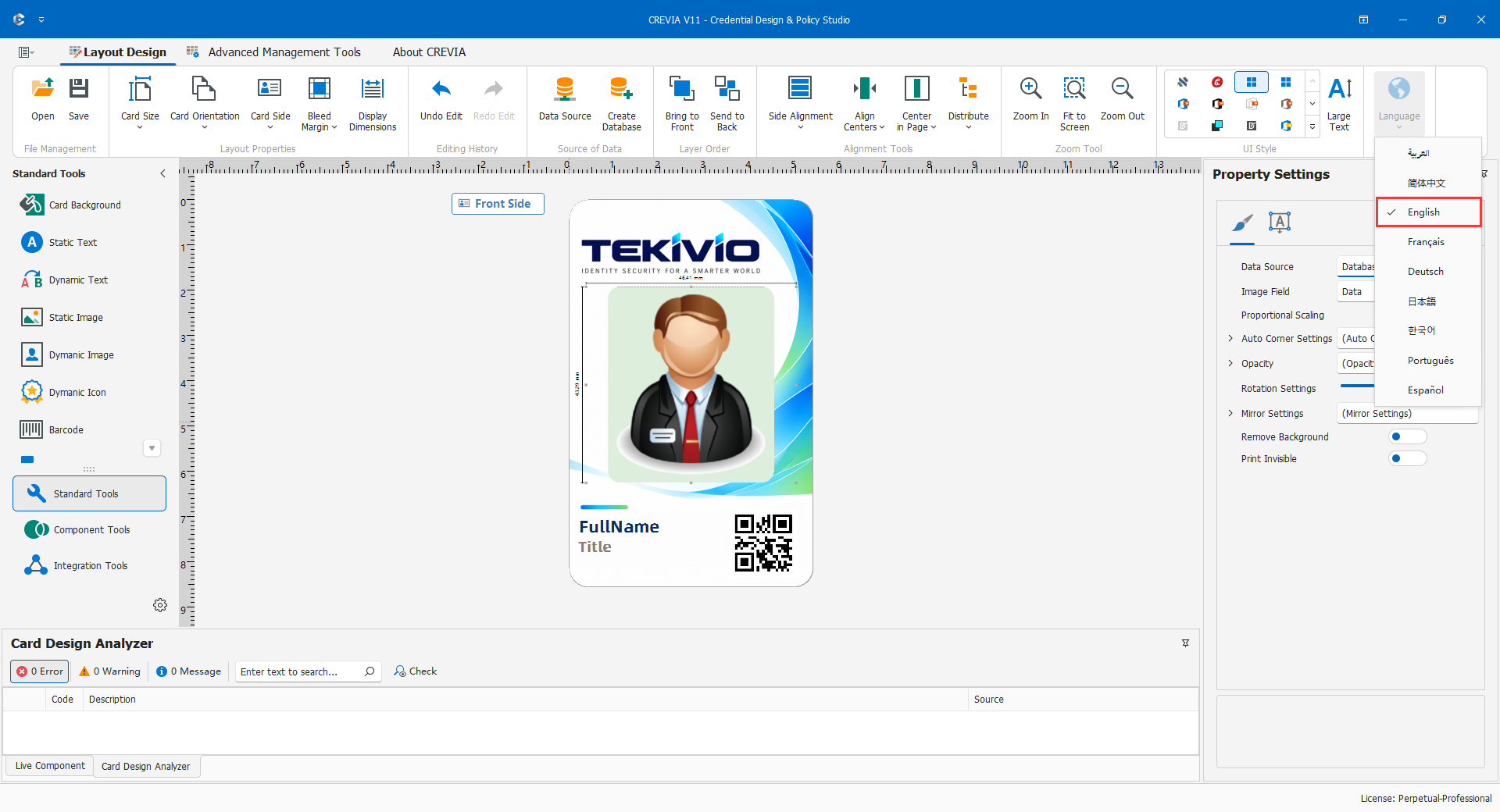
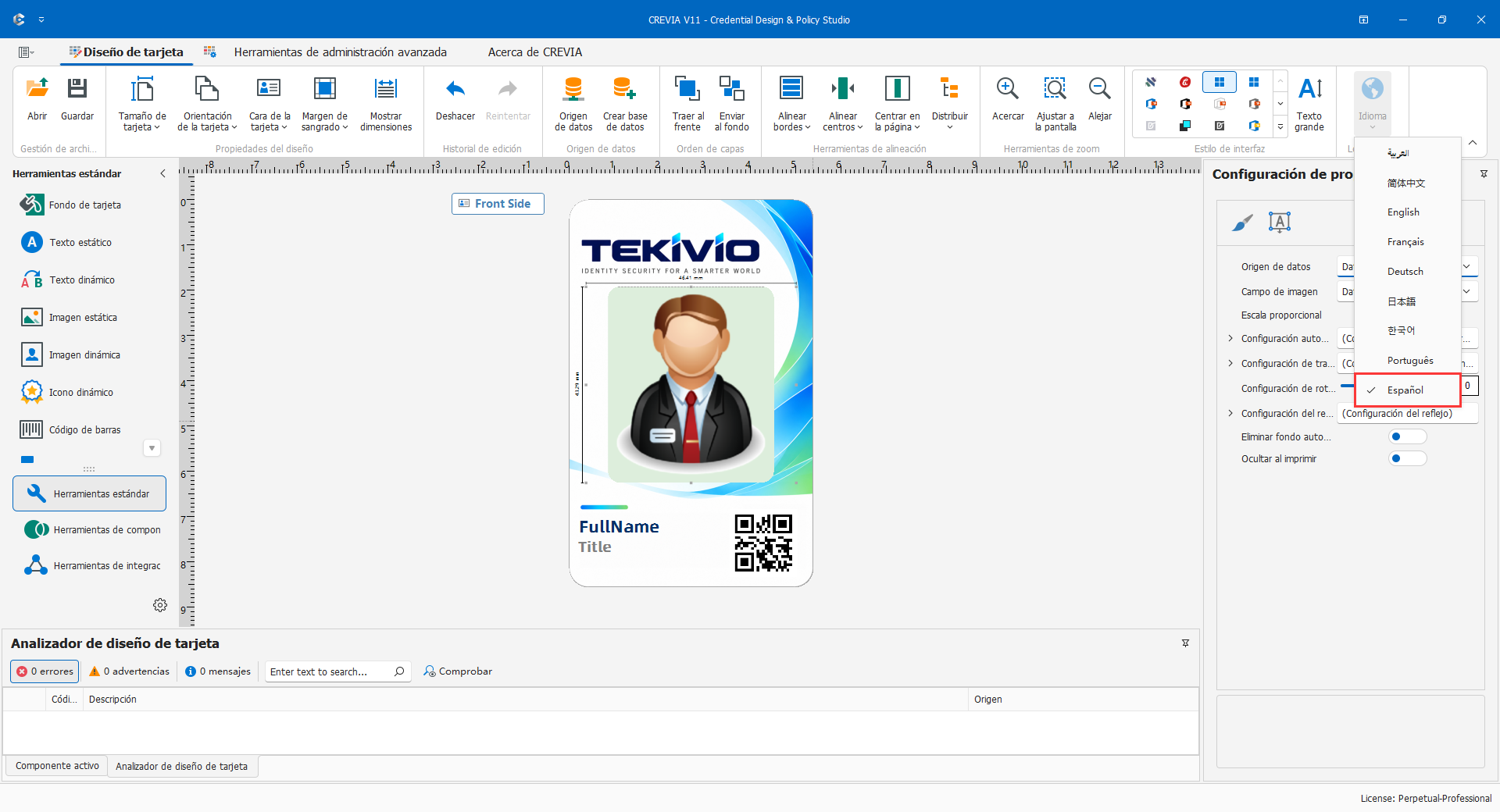
CREVIA supports Chinese, English, Arabic, German, French, Spanish, Portuguese, Korean, and Japanese.
- Select a language in CDPS or COC.
- Localizable window text, ribbon captions, dialogs, and messages refresh.
- The choice is saved as a shared setting. The other program reads it when subsequently started or reactivated.
- If an already-open child window has not refreshed, close and reopen it.
Changing the interface language does not rename layout fields or database columns, translate SQL, or change stored records. It affects interface text and built-in messages only.
3.3 Themes, Large Text, and Display
Themes
Use the interface style area to select a theme. Themes change skins, colors, and control appearance, not layout contents, database records, or printed output.
After changing a theme, check ribbon commands and disabled states, selected rows and active filters, canvas boundaries and selection frames, and information, error, and confirmation messages.
Large Text
Enable Large Text in the interface style area to improve readability in ribbons, panels, data views, and preview tools. It is useful for high-resolution screens, operation at a distance, and assisted reading.
Recheck window sizes after enabling it. At lower resolutions, expand, collapse, or resize panels and previews as necessary. Interface text size does not change text printed on a credential.
3.4 Common Message Dialogs
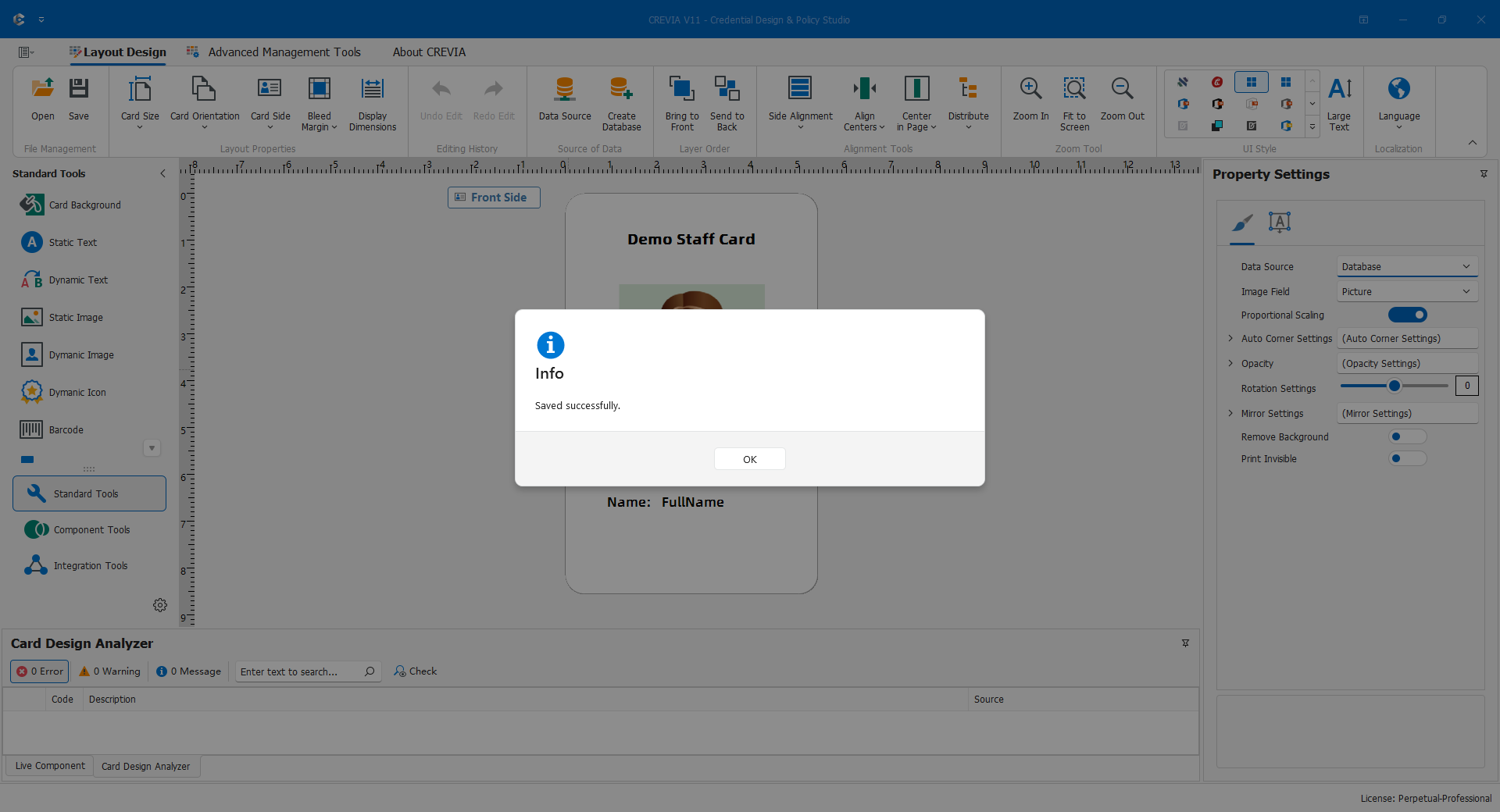
CREVIA uses consistent dialogs for results and confirmation requests.
| State | Meaning and response |
|---|---|
| Error | The operation failed or prerequisites are unmet. Read the message, then check permissions, licensing, paths, data, or devices. |
| Information | Success information or an explanatory message. |
| Message | The current operation's state or next action. |
| Confirmation | Approval before deleting, overwriting, closing, or otherwise affecting existing work. |
| License error | Insufficient licensing or functional permission; check the edition and current user's permissions. |
Before confirming, verify the target, path, and affected scope. A clickable button is not a reason to authorize an overwrite or deletion.
3.5 Selecting Files, Saving, and Default Folders
Opening and Saving Layouts
CDPS Open loads a .skdCard layout; Save retains the current design. COC Open Layout loads the file produced by CDPS. Use a separate project folder for the database, layout, images, and associated outputs.
Default Folders
File dialogs remember the last successfully used folder. This is a convenience only: it does not automatically move, copy, or delete files.
File Safety
Use stable, backed-up project directories. Back up the layout and database together: copying .skdCard alone may omit referenced data. Before replacing a version, use a new filename or retain a versioned copy. Do not directly edit installation templates, DLLs, or license files.
3.6 Updating the Software
Select Check for Updates in the About-related ribbon area of CDPS or COC to start CREVIAUpdata.
- Save unfinished layouts, data entry, and other work.
- Select Check for Updates.
- Review version information, download, and install as directed.
- If prompted to close the main applications, first confirm that all work is saved.
- After updating, restart CDPS or COC and verify the version and frequently used functions.
Do not update by manually overwriting installation files. If signature checks, network conditions, or permissions block the update, preserve the message and contact an administrator or technical support.
3.7 Feedback and Technical Support
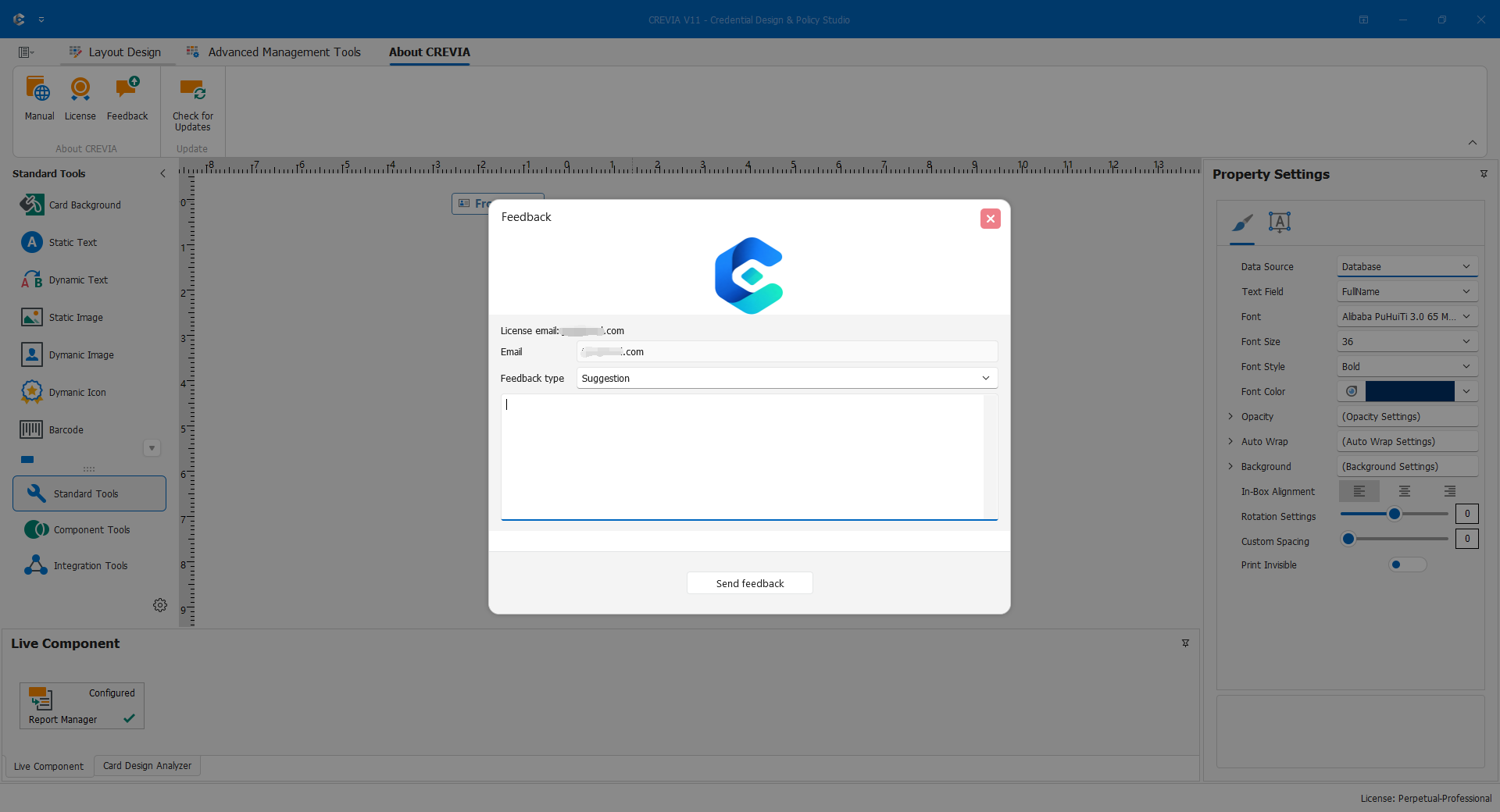
Open Feedback from the About-related ribbon area to report a reproducible issue. Include the application (CDPS or COC), version and interface language, steps preceding the problem, expected and actual results, and whether it occurs consistently.
Do not include license contents, passwords, connection strings, real personnel data, or other sensitive information. Redact illustrations before sharing them.
Chapter Check
You should be able to identify the ribbon, workspace, panels, and status bar; choose and confirm any supported language; adjust themes and Large Text; handle information, confirmation, error, and license messages; open, save, and back up project files safely; check for updates; and submit a redacted issue description.