
Import and Export
On this page
5.5 Import and Export
Validate fields, identity matching, and photo ownership with a small fictitious batch first. Back up before imports and export only necessary records/fields.
5.5.1 Import Overview
The six stages are Select File, Read Settings, Field Mapping, Photo Synchronization, Check Preview, and Execution Results. Sources are Excel, JSON, Markdown, XML, CSV, and Word, subject to structure and reader dependencies.
Confirm the correct database, a resolvable writable target, import permission, and the add/edit permissions required by the chosen mode. An accessible wizard does not authorize every mode. Test new/existing people, NULLs, and photos; execute only in the test database and reread to confirm the correct target table/database.
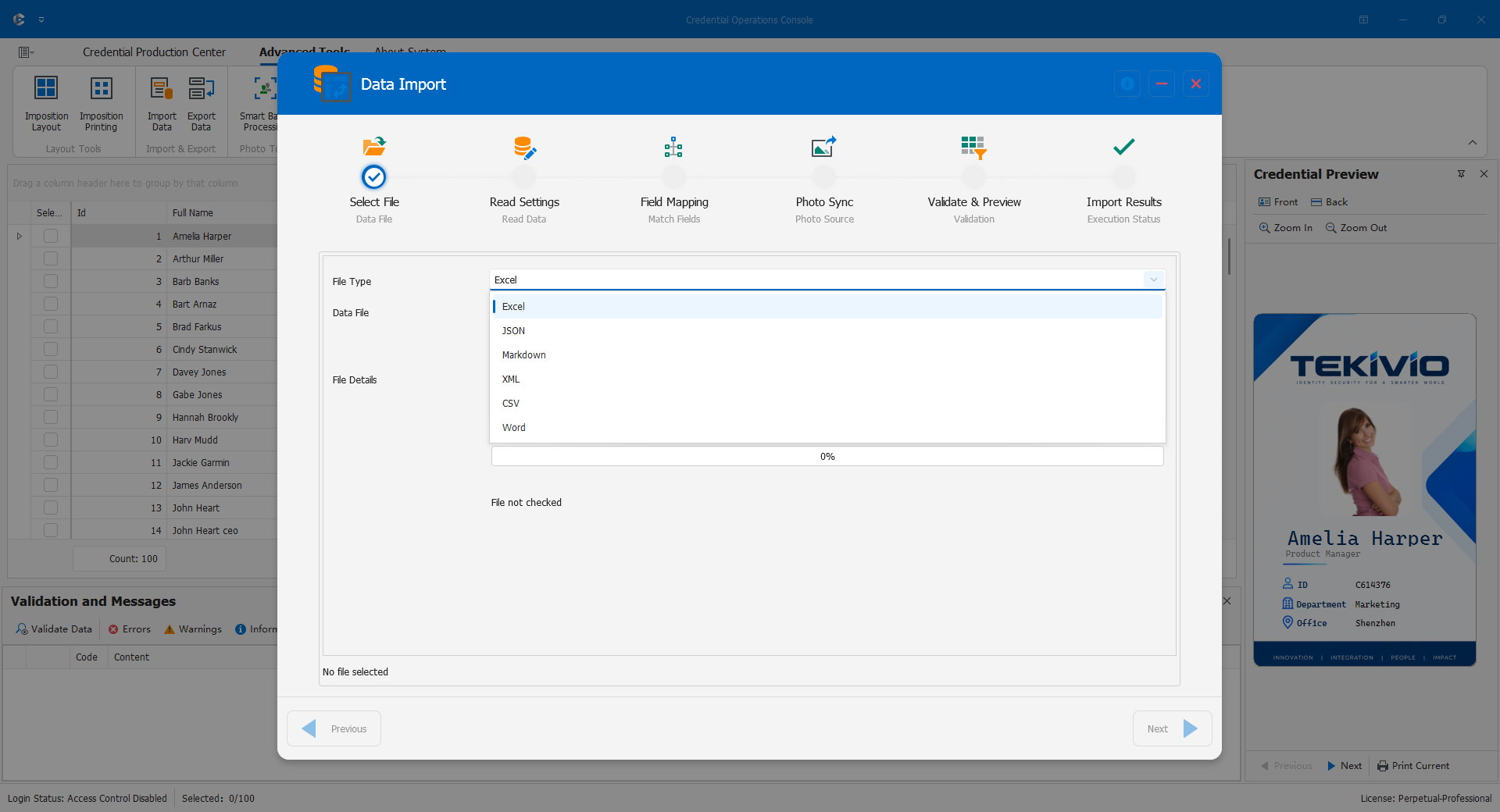
5.5.2 Source Files and Formatting
Give each record clear boundaries and stable fields; color, merged headings, and image placement are not field definitions.
- Excel: correct worksheet, header, starting row, and text identifiers from the outset. Lost zeros or truncated numbers cannot be recovered by changing the destination type.
- CSV: encoding, separator, qualifier, and proper handling of commas, quotes, and multiline values; inspect non-ASCII characters and shifted columns.
- JSON: the actual record-array path, not outer status metadata.
- XML: the personnel-node path, not its surrounding container.
- Markdown/Word: use the appropriate table, key/value, or paragraph structure consistently.
Decide whether to skip blank records or trim spaces. Preserve meaningful spaces, prefixes, and multiline text. Convert protected, damaged, unsupported old, or actively edited files using a copy and appropriate software; renaming extensions is not conversion.
5.5.3 Mapping and Preview
The preview shows at most the first 200 rows, not the complete source count or batch limit.
- Inspect Import, Source Field, Target Field, Data Type, and Default Value for each mapping, including automatic same-name matches.
- Map identifiers to identifiers, not display names to foreign-key IDs. Respect allowed auto-related/read-only targets.
- Use defaults only where business meaning permits, not to hide missing or invalid data.
- Validate dates, numbers, Booleans, and NULL conversions; integers cannot contain fractions and arbitrary yes/no text may not be recognized.
- For photos, select source, matching field, target binary field, and rules; review missing, multiple-match, and overwrite policy.
Folder matching requires names, extensions, and subfolder policy; paths may also come from a source field. Missing photos can permit text-only import, skip the record, or raise an error. Multiple matches can error or take the first by filename order, but this is not identity validation. Prefer unique numbers rather than names.
Use a compatible binary destination, not a text path field. Current photo synchronization rejects single files larger than 20 MB.
Figure 5.5-2. Show valid identifier/name/date mappings, one incorrect example, photo missing/multiple policies, and actual destination fields. Hide real photos and shares.
5.5.4 Pre-Import Checks
Recheck after changing source, read settings, mapping, or photo rules. Add Only creates records, not automatic deduplication. Update by Match Key skips unmatched records without adding them. Add or Update requires approval for both creation and replacement.
The key must be a main-table field, nonempty, unique within the batch, and uniquely locate a destination record. Names are normally unsuitable. Passing checks does not prevent later concurrency, constraint, or permission failures.
Review executable/error/skipped/photo totals, choose the error policy, and execute. Use Stop and wait for results; killing the process does not guarantee rollback. Preserve results and inspect successful, failed, and skipped records. Reread added/updated people, references, and photos. Retry corrected failures only, not the full add-only source.
Figure 5.5-3. Show three modes, match key, check summary, and execution results with a duplicate key and missing photo in a test database. Hide connection strings.
5.5.5 Export
The wizard proceeds through Export Settings, Field Selection, Photo Settings, Check Preview, and Execution Results. It exports currently loaded, interface-filtered data, not the entire database.
Confirm the main-window scope/selection, then choose the destination/name/available format and filtered records or checked records within that scope. Select data, photos, or both and minimum fields. For photos, choose the layout's main photo or an available binary field and a naming field; inspect missing images, NULLs, and duplicate names.
Check and execute, compare data/photo counts and exceptions, and open actual outputs. Previewing the first 200 rows is not an export limit. Data success does not establish photo success. Interface images are not automatically exportable as database photos.
Use controlled storage and approved delivery channels. Exports are point-in-time copies, not synchronized data or full backups.
Figure 5.5-4. Show filtered/checked counts, fields, naming, results, and redacted output folders. State that preview rows are not totals.