Runtime Requirements
On this page
6.1 Runtime Requirements
6.1.1 Operating System and Architecture
Current CDPS and COC target x64. Use a 64-bit Windows environment supported by the official package. Windows support for 32-bit applications does not make a 32-bit OS suitable for these applications, or a 32-bit database driver suitable for a 64-bit process.
The following is a suggested procurement/deployment baseline, not certified minimum requirements or a performance guarantee. Larger photo workloads, complex layouts, and databases require representative testing and growth allowance.
| Item | Ordinary production workstation | Batch photos or complex imposition |
|---|---|---|
| OS | Microsoft-supported Windows 11, 64-bit, updated | Same; select a version officially supported by device drivers. |
| CPU | 64-bit, at least 4 cores | At least 6 cores. |
| Memory | At least 8 GB | At least 16 GB. |
| Storage | SSD; at least 20 GB free for installation/temp work | SSD; at least 40 GB free; photos and backups additional. |
| Display | Suggested 1920 x 1080; initial acceptance at 100% or 125% scaling | Same; test dialogs/previews on every monitor. |
| Network | Stable wired network for server data/shared photos | Prefer gigabit LAN for large photo transfers. |
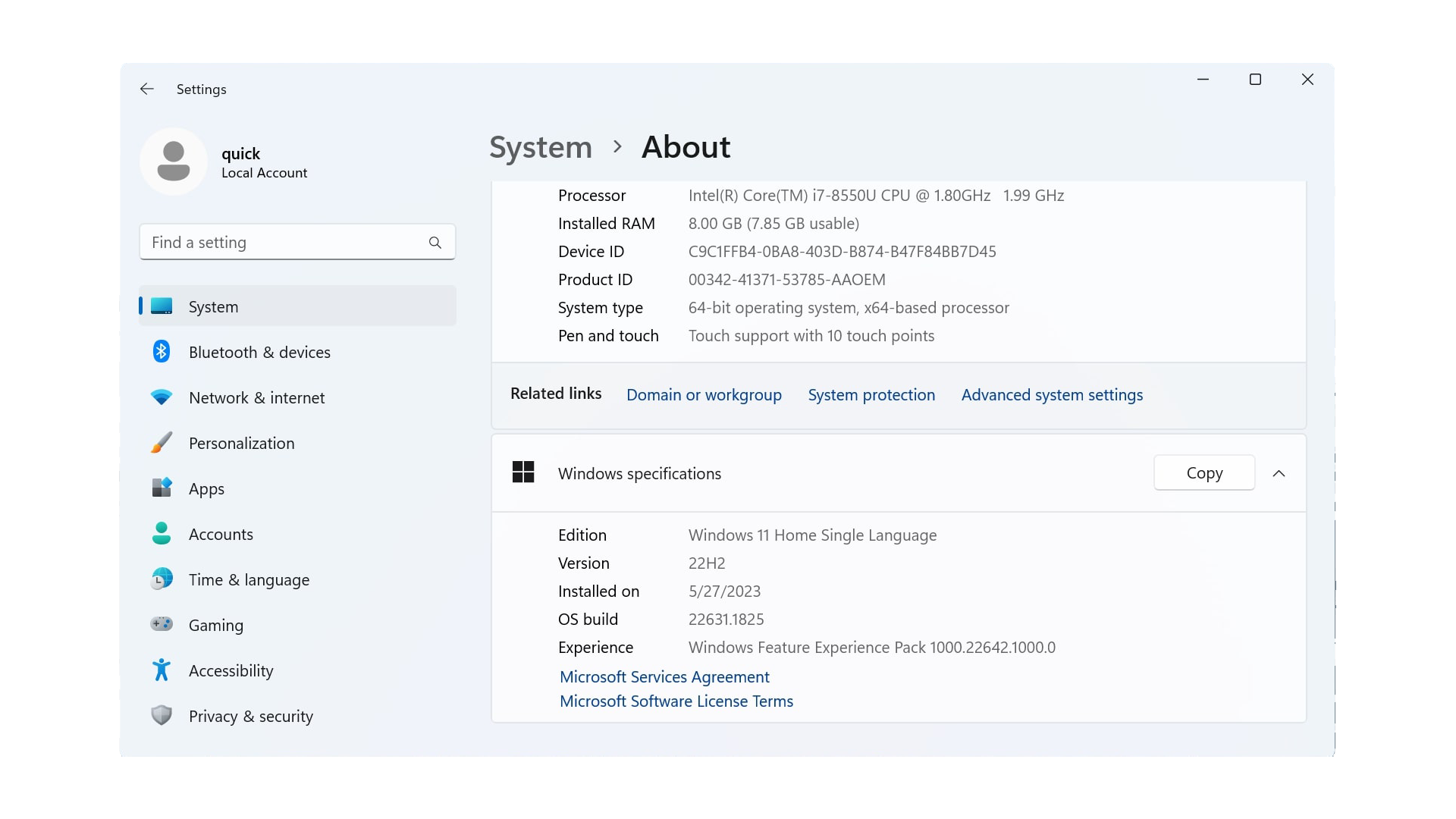
Run winver, then inspect Settings > System > About for architecture and memory, and This PC for disk space. If below the suggestions, validate realistic redacted workloads before batching. Installing .NET alone does not certify an older environment. Virtual machines, Remote Desktop, and server sessions involve licensing, graphics, and redirected peripherals. Prefer physical local production stations; test remote printing/capture/RFID separately.
6.1.2 Runtimes, Graphics, and Space
The applications target .NET Framework 4.8. A modern .NET runtime/SDK does not directly replace it. Install official dependencies; do not assemble DevExpress, layout, or native DLLs from unrelated software versions.
Use this read-only Windows PowerShell check:
Get-ItemProperty 'HKLM:\SOFTWARE\Microsoft\NET Framework Setup\NDP\v4\Full' | Select-Object Version, Release
Release 528040 or greater indicates .NET Framework 4.8 or a later 4.x update. If absent/lower, install through Microsoft or Windows Update, not by editing the registry value.
Allow space for programs, databases, photos, resources, update downloads, backups, and temporary batch/imposition data. For example, 10,000 photos averaging 300 KB occupy about 3 GB; originals, processed files, and one backup need about 9 GB before databases/history/temp. The table's free space is not the project's total storage budget.
Test memory, responsiveness, and output with representative large photos/layouts. Check main windows, dialogs, previews, long lists, graphics drivers, and display scaling. Record blank/overlapping rendering symptoms and system/graphics details; do not delete runtime libraries as a remedy.
6.1.3 Database and Device Drivers
Drivers must match database type and process architecture. Validate the required 64-bit ODBC/OLE DB/provider locally; another tool's successful connection is not proof CREVIA's provider is installed.
Open ODBC Data Sources (64-bit), verify the Drivers tab and actual user/system DSN. A same-name DSN created in the 32-bit tool is not sufficient. ACE deployments must consider existing Office architecture; do not solve conflicts by copying one DLL or casually uninstalling Office. See 4.5 for connection inputs.
Install the printer in Windows and verify driver, port, stock, and preferences. Check Printers & Scanners, queue, properties, and preferences. For serial writers, verify the COM port in Device Manager, then baud/protocol in the application. Cameras also need Windows privacy permission. USB insertion alone is not validation.
Manual RFID does not require the printer SDK for internal encoding control, but does need a compatible writer. Fully automatic in-printer encoding requires the accepted integration scheme.
6.1.4 File Permissions, Networking, and Time
The runtime identity needs appropriate business/photo/configuration access. Shared-folder and filesystem permissions both apply, separately from database authorization. Use minimum necessary rights rather than Everyone Full Control or permanently elevated execution.
Some runtime-root settings must be saved by the program. Use the official installation/permission scheme for protected locations; do not move partial installations, disable UAC, or weaken system folders. Mapped drives can differ by Windows user, so test using the real operator identity.
Update/account/license services and business databases/interfaces have distinct network requirements. Administrators should configure approved addresses, proxies, and firewall rules, not turn off endpoint protection. Keep time and time zone correct. Resolve time-related licensing through proper synchronization/validation, not clock rollback.
6.1.5 Post-Installation Acceptance
Use the actual role account and fictitious test data. Obtain permission before printing or writing test chips.
| Check | Acceptance criterion |
|---|---|
| Programs/license | Both applications start and About matches the planned versions/license. |
| Files | Open a test layout, save a permitted copy, close, and reopen. |
| Read | Correct test database, records, relationships, and photos, not merely connection success. |
| Write | Save an approved test addition/edit and reread at the actual destination. |
| Preview/fonts | Dynamic text, target languages, photos, and codes render correctly. |
| Devices | Validate actual printing, capture, or writing separately and match the physical person/card. |
Record user, date, and sample results. Read validation does not establish write permission; preview does not establish physical output.